
Ogent has a new way to set up online ordering for your restaurant: a self-serve signup with AI-powered onboarding that you can run on your own, without booking a sales call first.
Before you register, it builds a preview of your ordering portal — your branding and your menu structure — so you can see what your guests would see. It takes about a minute, and no card is needed.
Until now, getting started meant booking a demo and watching a walkthrough. That option is still there, but if you’d rather look for yourself first, you now can.
Below is how it works, and the two places you can start from.
What the AI-powered onboarding actually does
Here’s what happens when you set up online ordering for your restaurant through the new signup.
The AI-powered onboarding runs a short sequence in front of you:
- Creates your session
- Pulls in what it can about your business
- Searches and enriches your business information
- Builds a preview of your ordering portal
At the end you’re looking at a phone mockup of your own ordering page — your branding, your menu categories, a cart and a Place Order button. To click around and try ordering for yourself, you register and step into the portal itself.
That is the AI doing the setup work an onboarding call would normally cover — finding your business, structuring a menu, building the portal — instead of asking you to type it all in.
Then, and only then, you decide whether to register.
Two ways to set up online ordering for your restaurant
You can start from our website or from your POS marketplace. The route you take changes how much the system already knows about you — and that changes what the preview looks like.
| From ogent.ai | From your POS marketplace | |
|---|---|---|
| Best for | Any restaurant, any POS | Restaurants on Clover or Square |
| What you enter | Email, verification code, business name, address | Nothing — you just connect your POS account |
| Preview menu | Sample menu with your branding | Partial menu pulled from your POS catalog |
| Steps | Five | Find Ogent, connect, approve |
From our website
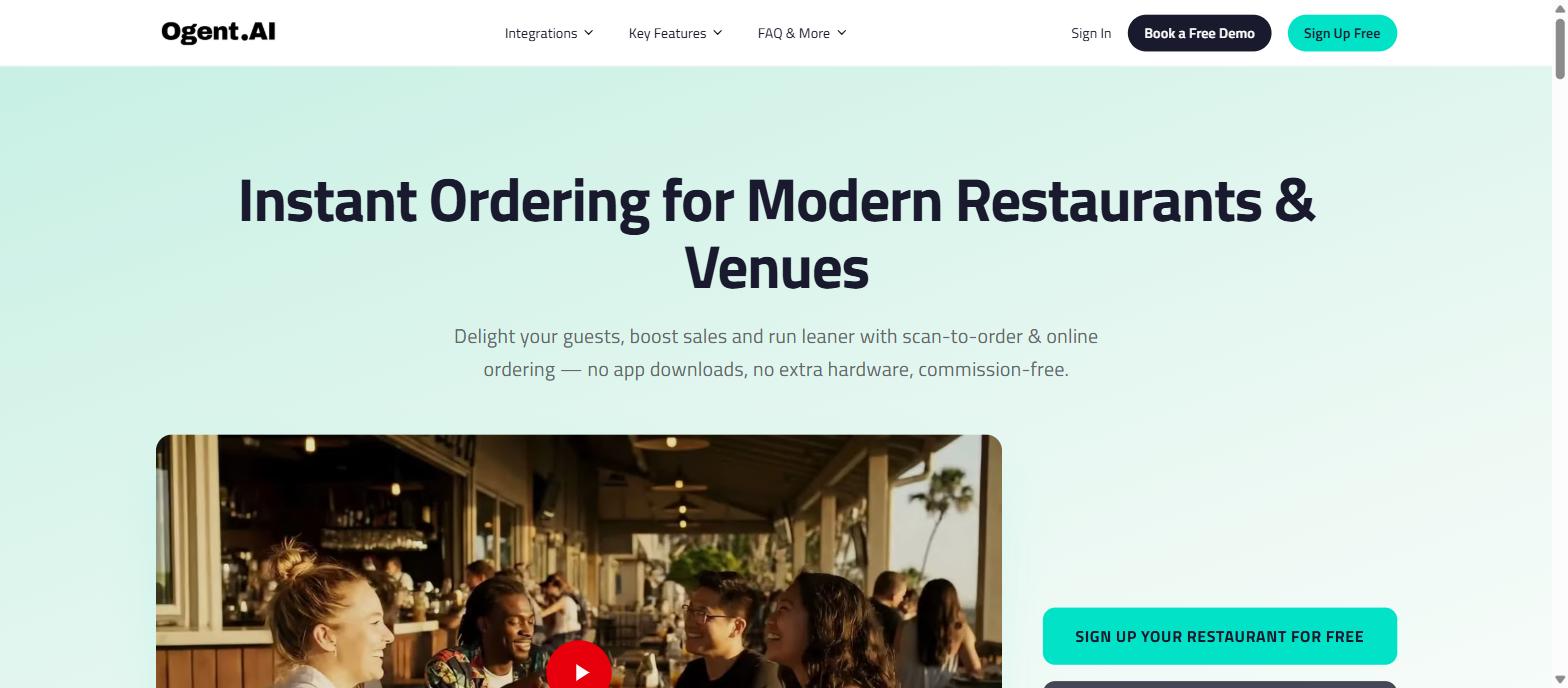
Go to ogent.ai and hit Sign Up Your Restaurant For Free.
You’ll give an email address, get a six-digit verification code, then enter your business name and address. From the address, the system goes and finds your restaurant — including your branding — and assembles a preview around it.
The menu in this preview is a sample one (Starters, Mains, Desserts with example items and prices). That’s deliberate: without a POS connection there’s no catalog to pull from yet. What you’re evaluating at this stage is the look and how your brand sits on the page. Register and your real menu gets built.
From your POS marketplace
If your restaurant runs on Clover or Square, you can start from your POS’s app marketplace instead. The process is the same on both:
- Open the app marketplace in your POS dashboard and search for Ogent.
- Open the Ogent listing and click to connect.
- Review the permissions and approve the connection.
Because the connection already knows who you are, onboarding skips the email verification and address steps. It goes straight to fetching your point-of-sale data — and the preview it builds uses your own menu categories, not a sample.
The permissions screen is worth reading rather than skipping. It’s the clearest summary of how closely the ordering portal ties into your POS — orders land on the POS, transactions flow into your sales data, and loyalty keeps accruing. The ordering page is a front door onto the system you already run, not a separate island of orders you have to reconcile later.
If you’re comparing this with Clover’s own Scan to Order, we’ve written up how Ogent and Clover Scan to Order differ.
Why we built it this way
Three reasons, all fairly unglamorous.
The first is that a demo of somebody else’s restaurant is a weak thing to make a decision on. Every operator’s menu has its own quirks — modifier-heavy builds, seasonal items, a bar list that behaves differently from the food. Seeing your own categories render tells you more in ten seconds than a polished walkthrough does in twenty minutes.
The second is timing. Restaurant owners don’t evaluate software during service. They do it at 11pm or on a Sunday, when there’s nobody to book a call with. Self-serve signup means the evaluation happens when you actually have a minute, not when our calendar has one.
The third is that we’d rather be open than gated. The AI-powered onboarding exists to make that first minute seamless — no call, no card, no sales gate in front of the product — and the platform stays open once you’re in. Restaurant operators can try the features out for themselves before subscribing to the service, rather than taking our word for how they work.
What happens after you register
Once you register, we set up online ordering for your restaurant in full: your complete menu, your branded portal, and access to the dashboard where you manage it.
Onboarding is free, there are no contracts, and you can cancel at any time. There are two plans: 4% of net sales with no monthly fee, or $149/month using your own payment account. Neither plan charges a commission on orders.
FAQ
Do I need to enter a card to see the preview?
No. The preview is built before any payment details are requested.
Can I try the features before I subscribe?
Yes. Registering is free, and once you’re in the platform is open — you can run the AI-powered onboarding, build your portal and look around the features before you subscribe to anything. You choose a plan when you’re ready to go live.
Is the preview menu my real menu?
It depends which door you came in by. From your POS marketplace, the preview pulls a partial menu from your POS catalog. From our website, it’s a sample menu wrapped in your branding. Either way, the full menu is built once you register.
Does this work if I’m not on Clover or Square?
Yes. You can set up online ordering for your restaurant from the website — you don’t need a POS connection to see a preview.
How long does it take to set up online ordering for your restaurant?
The preview builds in under a minute. Getting fully live — checking the menu, adding photos, printing QR codes — is more like an afternoon.
What if I want someone to walk me through it?
That’s still on the table. Book a demo and we’ll go through it with your menu on screen.
How much does it cost?
Onboarding is free, there are no contracts, and you can cancel at any time. There are two plans: 4% of net sales with no monthly fee, or $149/month using your own payment account. Neither plan charges a commission on orders.
Where do online orders show up?
On the POS you already use. Orders land on the POS, the transactions flow into your sales data, and loyalty keeps accruing — so the ordering page is a front door onto the system you already run, not a separate stream of orders to reconcile later.
What does the AI look up about my business during onboarding?
It searches for publicly available information about your restaurant — the kind of details already listed online — and uses them to prefill the preview so you have less to type. Nothing goes live until you register.
Does this replace Clover Scan to Order?
They are different products, and it is worth knowing which one fits how you work. We have written up how Ogent and Clover Scan to Order differ in a separate post.
Seeing it for yourself
Ready to see it with your own restaurant? The AI-powered onboarding builds a preview of your ordering portal in about a minute — no call, no card, nothing to install. Already on Clover or Square? Start from your POS app marketplace instead.